| Updated 24-Sep-2008 11:36:29 PDT by Chris Kasso |
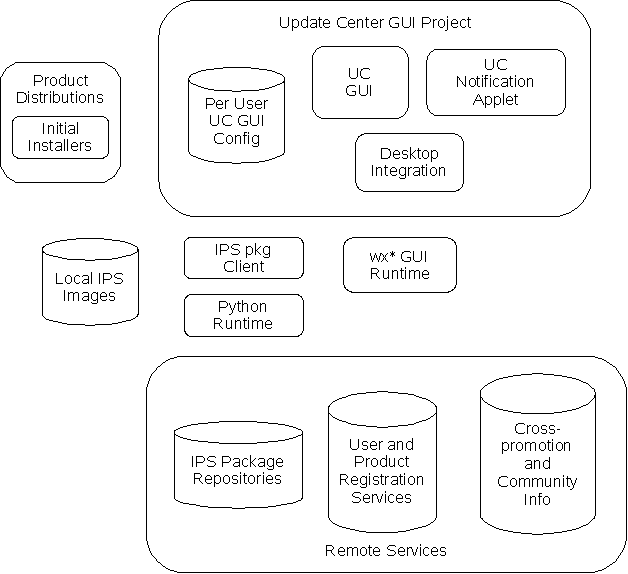
Install Image Manager GUI Application: A thick client application used to apply updates, install add-on components and to remove installed components within installations on a user's local system. It can also creates new local installation for these components.
Notification Applet: A small-scale application represented by an icon in the task tray or notification area of a user's desktop. Monitors repositories for applicable updates, notifies user of available updates and enables user to directly apply updates and launch the main GUI application. The notification applet is addressed in a separate Desktop Notification design specification.
The UC GUI applications share a common, per user configuration store to maintain user preferences associated with the GUI applications.
Desktop integration of the UC GUI applications consists of the following features:
Although the open source wxPython and wxWidgets GUI framework runtimes upon which the UC GUI applications are built and execute are technically external to the UC GUI applications, the UC GUI project is tasked with defining how these external dependencies are built and packaged in support of the UC GUI applications.
In the future, enhancements may be implemented to enable distributions to brand the GUI, but for the time being, the GUI represents itself as the "Update Tool".
| Dependencies | Description |
|---|---|
| Product Distributions | The IPS client and, in some cases, the UC GUI applications are included in installable product distributions. When a distribution assembler chooses to not include the UC GUI applications in his product distribution, the GUI applications can be installed later on using the existing "pkg install" command of the IPS client as long as the GUI applications and their dependencies are made available within package repositories that are associated with the image of interest. |
| IPS User Images | The UC GUI applications enable users to manage the content of IPS user images. |
| IPS Client Python Modules | Main means for GUI applications to manage local installed image and interact with network-based IPS repositories. |
| Python | Python is required by both the IPS client and wxPython-based UC GUI applications. |
| Desktop Environments | Start/Applications menu presence for starting the main GUI and task tray/notification area to represent the notification application's icon and menus. |
| Sun Product Registration Services | Local APIs and remote sun.com hosted services to enable user and product registration. |
| Community and Product Information | To be displayed in the main GUI in order to provide news and cross-promote other software of interest. |
| Requirement | Description | GUI Relationship | TP2 Priority |
|---|---|---|---|
| Overall-1.1 | Provide a multi-OS platform packaging approach to be used by SWI component | Initially limited to platforms supported by GF V3 TP2. | P1 |
| Overall-2.1 | Ability to install multiple, completely distinct installation images on the same OS instance | Although the UC GUI won't be the primary tool for installing new images, it will be one of the primary means of managing updates, additions and removals associated with an installed image. | P1 |
| Overall-2.2 | Ability to install and manage packages as non-OS system administrators | The UC GUIs will not assume that the user needs root or system admin privileges | P1, but the GUI may not have clean checks for write privileges to selected images. |
| Overall-2.3 | Ability to install and manage packages as OS system administrators. | See 2.2 above. | See 2.2 above. |
| Overall-3.1 | Packaging, repository and update technology must be open source. | P1 | |
| CL-1.2 | Collect and report package usage information | Ability to display via GUI download numbers for packages | P2 |
| CL-1.4 | Capability to present banner ads | Details TBD, but related to cross-promotion and information sharing for communities and product users | P2 |
| CE-1.2 | Specify groupings of related packages | Categories feature. | P1 |
| CE-2.1 | Specify promotions and news for delivery through update client GUI tooling | Details TBD, but related to cross-promotion and information sharing for communities and product users | P2 |
| PD-1.2 | Sufficient support for Web/J2EE based applications | Package install-time configuration can be triggered via UC GUI | P1 |
| RM-1.2 | Combine selected packages in arbitrary groupings | Categories feature | P1 |
| RM-1.5 | Include up to at least 1,000 packages in each repository | GUI design should scale to handle at least hundreds of packages. | P2, GUI will only need to handle scores of add-ons. |
| RM-2.1 | Ensure package management clients can validate the identity of repositories | Signed packages from known authorities along with certificate registration for each authority. | P2 (an emerging feature of IPS) |
| DA-1.1 | Minimize distribution size of bootstrap install image | Minimize size of the GUI apps and their dependencies | P1 |
| DA-1.2 | Minimize external dependencies of bootstrap install image | All external dependencies must be bundled in the solution. Apart from requiring Java to be present, the solution cannot require any other significant external dependencies to be satisfied separately by the user. | P1 |
| ADM-1.1 | Minimize UIs required for package management functions. | Only one GUI application and a small notification applet are being delivered. | P1 |
| ADM-1.2 | Standalone package management tool must be visible through the desktop applications menus | UC GUI package must be capable of adding an appropriate Start/Applications menu item | P2, depends on degree to which GFv3 TP2 distro will be registered via Start/Applications menu. |
| ADM-1.4 | Interactive response times | P1 | |
| ADM-1.5 | High quality error messages | P2 | |
| ADM-1.8 | Sufficient busy/progress feedback. | P2 | |
| ADM-1.9 | Ease of use: CLI and GUI should be attractive, efficient, and easy to use. | P1 as it applies to the overall layout. | |
| ADM-1.10 | Desktop Integration: Start Menu | See ADM-1.2 | See ADM-1.2 |
| ADM-3.1 | Install a set or subset of interrelated packages making up a distribution, from local media | Not supported initially. Depends on IPS' support for a marshalled, installable form of packages. | P2 |
| ADM-3.5 | Minimize external dependencies for bootstrap install image. | See DA-1.2 | See DA-1.2 |
| ADM-4.2 | Automatic desktop notification of updates and new components | Task tray and notification area icon and update GUI launching support | P1 at least for Windows. |
| ADM-4.4 | Become aware of and obtain updates and new packages from multiple repositories | Yes, but timing of this feature depends on IPS' ability to support multiple repositories per install image. | P2, since IPS' composite repository support is evolving. |
| ADM-4.4.1 | View summary of changes in a particular version of a package such that you can make an informed decision about whether you'd like to apply it. | Yes, depends on change history being available in a standard way with each package. | P2, but will strive to demonstrate approach to supporting this feature. |
| ADM-4.5 | Easily view groupings of related packages | Categories feature | P1 |
| ADM-4.8 | Send RSS feeds to update/install clients | Approach is TBD. | P2 |
| ADM-4.9 | Distinguish types of updates and provide appropriate notifications via desktop tray icon | Highlights security-related updates | P1, as long as package level tagging approach is feasible. |
| ADM-4.10 | Elegant desktop notification for multi-install | Only one notification icon will be displayed for UC managed images | P1 |
| ADM-5.1 | Search for availability of packages by name | P2, but we expect to integrate OpenSolaris GUI's approach to basic searching of the package name and description fields as soon as it becomes available. | |
| ADM-6.1 | Trigger installation from "advertised" services (e.g. icons which install new applications) | TBD | P2 |
| ADM-6.5 | Remove (Undo) an update applied to a package | Depends on IPS' capability across platforms | P2 |
| ADM-6.6 | Remove (Undo) an update applied to a package, with limited or no access to media | Depends on IPS' capability across platforms | P2 |
| ADM-6.7 | Verify authenticity or source of new and updated packages | Via IPS' package signing feature | P2 |
| ADM-8.1 | Side-by-side installations | * Enable user to run UC GUI once and change between installed images. *Update notification applet will monitor and report on updates for multiple images of interest. | P1 |
| ADM-10.1 | Easily determine installations available to an OS instance | Several tools will help users keep track of installed images: 1) Install applications should register a newly installed image with the UC GUI's configuration 2) A user should be able to register installed images via the GUI 3) Eventually, a scan for images feature will be added to the GUI. | P2 |
| ADM-10.3 | Locate package(s) which contains specific component(s) or file(s) | GUI's search feature is constrained by the underlying IPS search capability. | P2 |
| ADM-11.3 | Manually remove discrete packages and be notified of dependencies prior to removal | P1 | |
| ADM-11.4 | List content and metadata of a package including install location and change log | P1 with partial coverage of metadata for TP2 | |
| ADM-11.5 | Verify correctness/integrity of a package | P2: IPS already supports a "verify" option on the pkg CLI that verifies the installed representation of the package on a file-by-file basis. We need to expose this feature through the GUI. |
 must also be supported by the UC 2.0 toolkit.
Section 508 compliance is a requirement of the UC GUI applications. See wxWidgets Accessibility Tips.
Note: The current implementation restricts itself to operating on 'User' images (See IPS terminology) only mostly due to performance concerns with large images and repositories.
In several cases the UC 2.0 project's need to align with the UC 1.x and NetBeans Plug-in Manager UI design approaches will cause the UC 2.0 team to deviate from the UI design being implemented in the OpenSolaris IPS-oriented GUI applications.
The UC 2.0 project is monitoring the design and development progress of these applications and will leverage and align where appropriate.
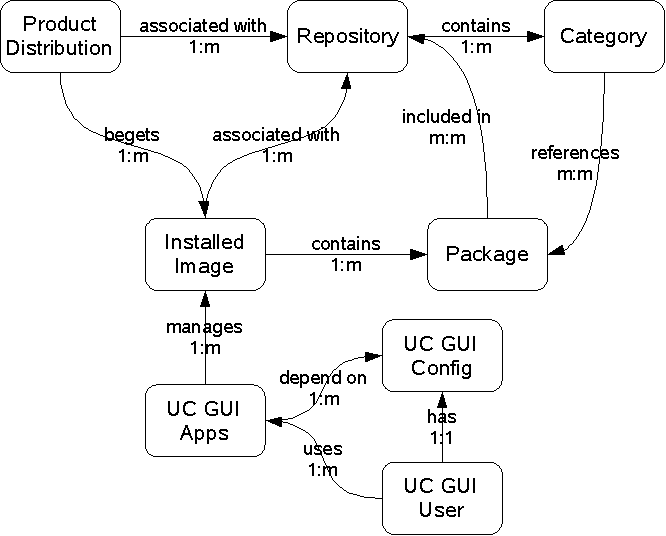
| Entity | Description | Constraints |
|---|---|---|
| Distribution | A collection of related packages
and package repositories that make up a large scale binary offering.
Examples of distributions include: * Binary downloads from open source projects that have package repositories through which add-ons and updates are distributed. * Binary products from commercial vendors that have package repositories through which add-ons and updates are distributed. | * Contains one or more Components (Packages and Package Groups) * Associates with one or more Package Repositories * Available in an installable from scratch form |
| Package | Set of files that deliver a discrete set of functionality. Packages are a fundamental unit of management within package repositories. (A Package Group or Virtual Package is an emerging feature of IPS through which a package maintainer will be able to group related packages together. The UC 2.0 projects is not depending on the Package Group feature. See the Categories entity for the means by which groups of packages will be presented in the UC 2.0 GUI.) | * Contains installable files and metadata * Associated with one or more repositories * Associated with zero or more categories |
| Image | An installed set of packages associated with a distribution and a one or more package repositories. The set of installed packages are located under a common top level directory in a filesystem. The UC 2.0 project is primarily concerned with the IPS' "user images", images that are not associated with or linked to any other images. | * Contains one or more packages * Contains list of installed packages and their files * Contains list of pointers to the Repositories associated with Installed Image |
| Component | "Component" is another name for a package or package group. Unlike the OS level administrators' interest in working with relatively low-level package management tools such as Synaptic, the user base of applications using the Update Center Toolkit will likely be more concerned with management of features. For example, in Synaptic all of the items managed are presented as packages with the technical package name used as the primary means of identifying each package. At the other end of the spectrum, the Add/Remove Applications tools of both Windows and Gnome desktops address management of coarse grain units that provide limited visibility for the significant components of each application. In Update Center 2.0 an emphasis will be placed on avoiding the use of the term "package" in favor of the less technical term "component". In many cases package groups will be used to represent a collection of related packages. Components will be primarily displayed and identified through the use of a relatively short title and, when necessary, represented more specifically through the underlying package or package group name. | See Package. |
| Repository | A network-accessible facility allowing for ease of publishing, managing and distributing packages and updates to packages. | * Contains one or more Packages * May contain repository-wide metadata |
| Category | "Category" is being used to
represent groupings of components. Whereas component titles and the
underlying package and package group names are expected to be managed
by package maintainers, creation and management of categories will be
managed by owners of distributions that maintain repositories. It is
the distribution owners that best understand how a series of components
should be presented to the users of the distributions. The two-level category->component approach is already in used by the NetBeans 6.0's Plug-in Manager and the GlassFish V2 Update Center 1.0 applications. In NetBeans 6.0, even though NetBeans modules are used as the underlying packaging mechanism, the modules and groups of modules are presented as a series of "plug-ins". These plug-ins presented in the context of categories. GlassFish V2 Update Center 1.0 which is also based on NetBeans modules, represents manageable units as "software" that is arranged in a series of groups. | * Is referenced by one or more Components (Packages and Package Groups) * Contains metadata |
| GUI Application Configuration | A per user store associated with UC 2.x GUI and Update Notification applications. | * Contains user's GUI application preferences * Contains list of Installed Images of interest * Contains list of Repositories of interest |
See the Notification Applet Specification
| Function | Description |
|---|---|
| Listing and Installation of Available Updates | For those components that are currently installed, provide the user with a list of available updates, whether they are security related and change history information and enable the user to easily apply the updates. |
| Listing and Installation of Additional Components | Within the scope of the repositories that are associated with an installed image, list the additional components that are available and provide the means to easily install these components. Provide a basic search capability to help find components of interest available in repositories. |
| Listing and Removal of Installed Components | Enables users to easily determine the components that are installed and to remove components of interest. |
| View of Multiple Images | Ability to select which installed image the user wants to manage. |
| Function | Description |
|---|---|
| Composite View of Multiple Repositories | The underlying IPS infrastructure does not yet contain solid support for associating multiple repositories with a single install image. As this support matures, the UC 2.0 GUI will be expected to provide composite views of multiple repositories in the component listing views. |
| Listing and Installation of Other Software | Provides users with a view of software components and distributions that fall outside the scope of repositories associated with currently installed images. For example, the UC GUI can be used to promote the availability of MySQL server and associated tools even if those components are not currently made available within the repositories associated with currently installed images. |
| User and Product Registration | Beyond the extent to which the UC 1.x GUI supports registration of the distribution being managed, the UC 2. toolkit is expected to support the ability to register add-on components applied to an install image. |
| Entitled Access to Updates | Implementation of controlled access to updates may be relevant for commercial software distributions that supply updates as part of charged for services. The underlying IPS infrastructure enhancements and the impact on the GUI design need to be addressed in this regard. |
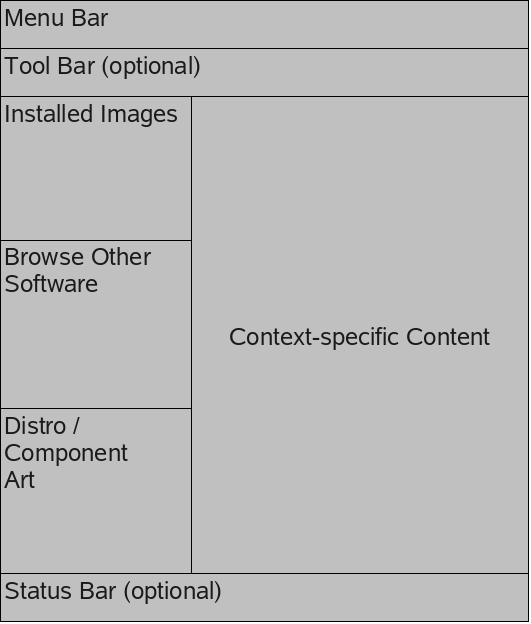
Also see the color scheme for the left panel and list views.
| Area | Description |
|---|---|
| Menu Bar | Standard layout menu bar. See details below. |
| Tool Bar | Content is TBD based on rest of GUI design. Very interested in realizing a toolbar as provides a visually interesting component of the overall UI. |
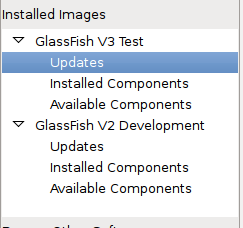
| Left Pane | Defines the overall functions and content of current interest. Drives which structure is to be displayed in the right pane. Installed Images: Lists the images that the user wants to manage. Selecting a specific image sets the GUI in the context of managing updates, additions and removal operations against that image. Browse Other Software: A placeholder for cross-promotion of software that is positioned to be installed outside of any of the existing install images. Distro/Component Art: A placeholder for any distribution- and/or component package-specific logos. When an install image is selected and no components are selected, the artwork of the distro that is associated with the installed image is displayed. When a component is selected and it has component artwork, then the component artwork will be displayed in this area. (Alternatively, component artwork could be displayed in a portion of the Description tab in the Information pane). |
| Right Pane | Main content to be displayed. Content depends on selections in the left pane. |
| Status Bar | Overall information pertaining to the task at hand. |
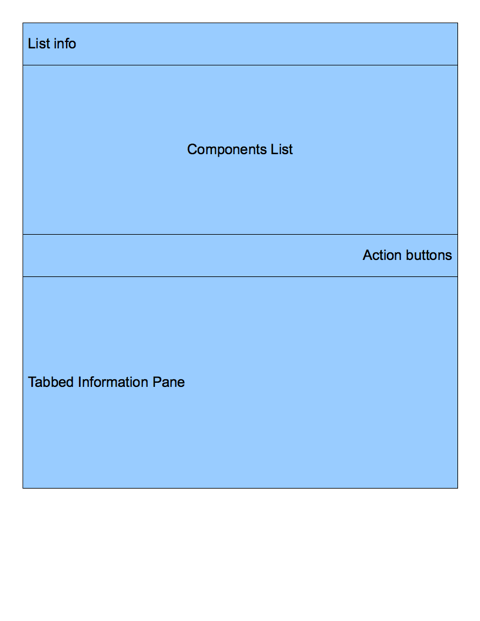
| Area | Description |
|---|---|
| List Info | Depending on the currently viewed content type, contains summary information. See the view section below for details. |
| Component List | List of components. Must be sortable based on the user clicking the column headers. Must utilize alternating background shading. Components in lists should always be preceded by either a component-specific icon or a default icon when a component-specific icon is not available. |
| Action Buttons | Buttons to mark, unmark and operate on the marked components. |
| Tabbed Information Pane | Tab-based view of relevant information. Varies across views. |
See the current set of icons .
.
| Role | Description | Current Icon |
|---|---|---|
| GUI Application | The icons used to represent the Update Tool application in various locations: * Top left of window frame * Start menus * Task tray/dock * About dialog * Notification area We need to deliver two forms of this icon: 1) Generic Update Tool icon for use when the tool is embedded in another product. 2) Update Tool icon for use when the tool is used outside the context of any one product. |  |
| Menu Items | Since we'll probably reuse the stock images that are available on most OS platforms, we don't currently anticipate adding new requirements here. | NA |
| Toolbar | We will have a few toolbar entries that require icons. See the Toolbar section of this document for details. |    |
| Buttons | Buttons with stock images look good on Gnome, but on Windows and Mac OS X, the buttons don't have icons. We might decide to use custom images for button icons in the future, but currently we're sticking with stock images where they are available. | NA |
| Generic Installed Image | Each installed image shown in the left pane of the GUI will have an icon associated with it. When a distro- or application-specific icon is not available, the generic installed image icon will be displayed. |  |
| Views | Each main view of the GUI will have an icon. Views include: * Available Add-ons * Available Updates * Installed Components |    |
| Component Alerts | In the list view, the following alert icons will be required: * Security Update * Restart Required * New (meaning new component or update since the tool was last started) | placeholder for security alert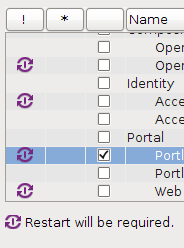 placeholder for new icon (see starburst example in GFv2 UC 1.x GUI) |
| Categories | When categories of components are displayed, they will need icons. | |
| Browse Other Software | As this feature is further defined, it may require icons. |
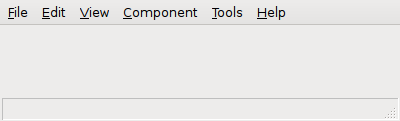 |
| Menu | Description |
|---|---|
| File | Functions of selecting and closing an installed image in the GUI. |
| Edit | Typical bulk functions such as Select All and editing user preferences. |
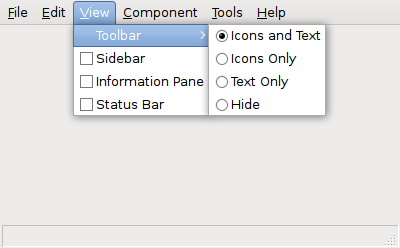
| View | Modifying what is displayed on the GUI. |
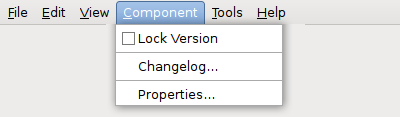
| Component | Component or package level operations applicable when one or more components are selected in the list view. |
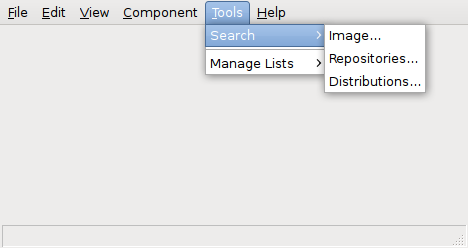
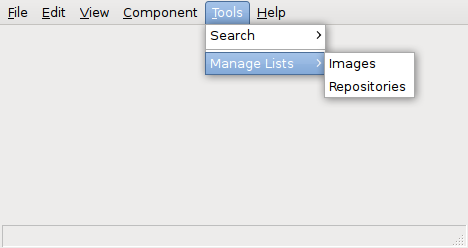
| Tools | Ancillary tools to support search and managing lists of images and repositories. |
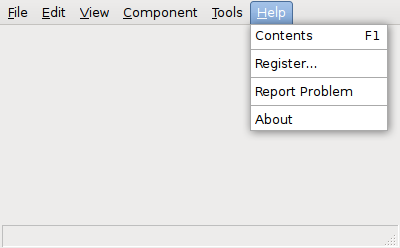
| Help | Help contents, Registration, Feedback and About functions. |
General Menu Requirements:
| Menu Item | Description | Priority |
|---|---|---|
| New Image | Create new install image from scratch. Enable user to either enter the URL for a package repository or select one or more package repositories from a list of repositories. Upon creation, the image will be empty, selected as the active image in the GUI and the list of available add-ons from the repository will be displayed. | Nice to have feature. Not required for TP2. |
| Open Image... | Open the standard directory
selection dialog to enable selection of a directory containing an
install image. As a directory is selected, ensure that it contains an
install image. Raise an error dialog if it does not. If the image is not already listed in the "Installed Images" area of the left pane, add an entry for the image. Load the image and repository information as necessary into the GUI. This image becomes the active image. Display the available updates for the image. If no updates are available, display the installed components. | Required for TP2, but not for Milestone 2. Milestone 2 can depend on always loading the install image information from the location in which the GUI was started. |
| Scan for Images... | Open the standard directory
selection dialog to enable selection of directory under which the tool
will scan for the presence of install images. The results will be
presented in a dialog such that the user can select which image to open. Once an existing image is selected, follow the behaviour of the Open Image function. | Nice to have feature. Not required for TP2. |
| horizontal divider | ||
| Close Image | This option is active when an image is selected or active in the GUI. Selection of this option results in the removal of the image from the list in the left pane and removal from the list of the images of interest as stored in the user's GUI confiuguration. | |
| Save Image As... | Clone the image. Open the
standard directory selection dialog to enable the user to create a new
directory under which a copy of the currently active image will be
copied. Prompt the user as to whether the newly created image should be added to their list of images of interest. | Nice to have feature. Not required for TP2. |
| horizontal divider | ||
| Image Properties... | Enables one to edit the
properties for the installed image. For example, modify the list of
repositories associated with the image. The set of information modified
here would probably be limited by what can be changed within the image
via IPS interfaces. Initially, the set of information to modify
includes: * Name and description of the Image (the name as displayed in the tree view) * Repositories This feature can also be accessed from the GUI when a user selects an installed image in the list of Installed Images. The right side of the GUI will display a read only list of image properties and an "Edit Properties..." button which when clicked will lead to the same edit image properties dialog. |
| horizontal divider | ||
| History | To be defined. | NA |
| Quit | Gracefully exit the application. | Required for TP2 and Milestone 2. |
| Menu Item | Description | Priority |
|---|---|---|
| Mark All | When a list view is displayed, mark all items in the list. This option is an alternative, menu-based means of accessing the same function as the "Mark/Unmark All" button at the bottom of a list. | |
| Unmark All | When a list view is displayed, unmark all items in the list. This option is an alternative, menu-based means of accessing the same function as the "Mark/Unmark All" button at the bottom of a list. | |
| Refresh | Same feature as the Refresh button at the bottom of a list view. | |
| Preferences... | Edit user's preferences for the operation of the GUI and notification applet. |
| Menu Item | Description | Priority |
|---|---|---|
| Show All Versions | Enabled for "Available Add-ons" and
"Available Updates" views. Results in all available versions of each
package being displayed in the component list. Enables users in
advanced scenarios to browse older versions and select them for
installation. This menu item should be greyed out/disabled when these
two views are not active. In "Available Updates", the currently installed version and older than currently installed versions will not be displayed. | Delivered for 2.0 production quality release. |
The following View menu items will be added in the future. These are standard View menu items that most GUIs provide, but are relatively low priority at the moment.
Additional Notes and Requirements:e
 |
 |
 |
 |
| Toolbar Button | Description |
|---|---|
| Open | Open an install image by displaying its contents in the GUI. Same operation as the File -> Open... menu. |
| Refresh | Based on the selected install image, reload component information from the local installation and remote repositories. |
| Register | An optional button that would launch a user and product registration dialog. Whether a toolbar entry for registration makes sense will be determined by the user interface design of the overall registration feature. |
Operation:
Icons:
Selection:
Tree vs Accordion:
Note that a category-based view of the available updates is not required.
 |
General:
Component Columns: Further information can be viewed by selecting the component and the tab of interest. Here are the list of columns to display:
| Column | Description | Attributes |
|---|---|---|
| Mark box | Box to enable marking the component | |
| Component | Title of the component (not the package name) | Left-justified |
| ! | Alert icons: * Security fix included * Restart required See explanation below. | |
| Published | Date update was made available | Left-justified 3 character month abbreviation, day, full year |
| New Version | Latest available version of the component | Left-justified |
| Installed Version | Version of the already installed component | Left-justified |
| Download | Download size of the updated portion of the components. | Right-justified with space between number and either "MB" or "KB". If < 1 MB, show size in KB. If >= 1 MB, show size in MB Precision: 1/10th. |
| Source | Represents an icon of the repository from which the update is being made available. No icon would be listed when a repository does not have an icon. For example, a Sun official and supported repository may be represented by a Sun logo whereas an update made available from another repository may have a different icon. A tooltip providing the name of the repository would be useful. The Description tab at the bottom of the right pane will provide more details on the repository source. | |
| Package Name | Given the presence of the Component title, package name may not be required in the list. The Package Name should be available in the Description tab. Perhaps it should be an optionally listed column. See the View menu for additional notes about optional columns in lists. |
Alert Icons:
List Info Area:
Buttons:
Lower Tabbed Information Pane: Upon selection of a component, the lower information pane will contain the following tabs:
The restart required icon and column approach from the UC 1.x GUI can be reused to indicate that a component or container restart is required upon applying an update or installing a new components:
Selection and Marking:
Categories Pane: The Categories subpane is displayed to the left of the list of installed components.
List Area:
Component Columns: Only minimal component information is contained in each row of the component list. Further information can be viewed by selecting the component and the tab of interest. Here are the list of columns to display:
| Column | Description | Attributes |
|---|---|---|
| Mark box | Box to enable marking the component | |
| Component | Title of the component (not the package name) | Left-justified |
| Version | Version of the already installed component | Left-justified |
| Package Name | Package name is thought to be more relevant for already installed components, but if space is too tight this column could be excluded by default. |
List Info Area:
Buttons:
Lower Tabbed Information Pane: Upon selection of a component, the lower information pane will contain the following tabs:
Selection and Marking:
Categories Pane: The Categories subpane is displayed to the left of the list of available add-ons.
List Area:
Component Columns: Only minimal component information is contained in each row of the component list. Further information can be viewed by selecting the component and the tab of interest. Here are the list of columns to display:
| Column | Description | Attributes |
|---|---|---|
| Mark box | Box to enable marking the component | |
| Component | Title of the component (not the package name) | Left-justified |
| ! | Alert icon: Restart required See explanation below. | |
| Published | Date update was made available | Left-justified 3 character month abbreviation, day, full year |
| Version | Latest available version of the component | Left-justified |
| Download | Download size of the updated portion of the component. | Right-justified with space between number and either "MB" or "KB". If < 1 MB, show size in KB. If >= 1 MB, show size in MB Precision: 1/10th. |
| Popularity | Are in which to represent star ratings | |
| Source | Represents an icon of the repository from which the update is being made available. No icon would be listed when a repository does not have an icon. For example, a Sun official and supported repository may be represented by a Sun logo whereas an update made available from another repository may have a different icon. A tooltip providing the name of the repository would be useful. The Description tab at the bottom of the right pane will provide more details on the repository source. | |
| Package Name | Given the presence of the Component title, package name may not be required in the list. The Package Name should be available in the Description tab. Perhaps it should be an optionally listed column. See the View menu for additional notes about optional columns in lists. |
Alert Icons:
List Info Area:
Buttons:
Tabbed Information Pane: Upon selection of a component, the lower information pane will contain the following tabs:
Selection and Marking:
See the OpenSolaris Package Manager wireframes below for examples of the confirmation, downloading and installing dialogs.
Upon clicking of "Apply", display a confirmation dialog with the following summary information:
Show download progress as distinct from installation progress.
Once download is complete, installation should begin automatically.
Installation progress:
Upon completion of applying updates, check to determine if any of the updated components affect the currently executing update tool instance.
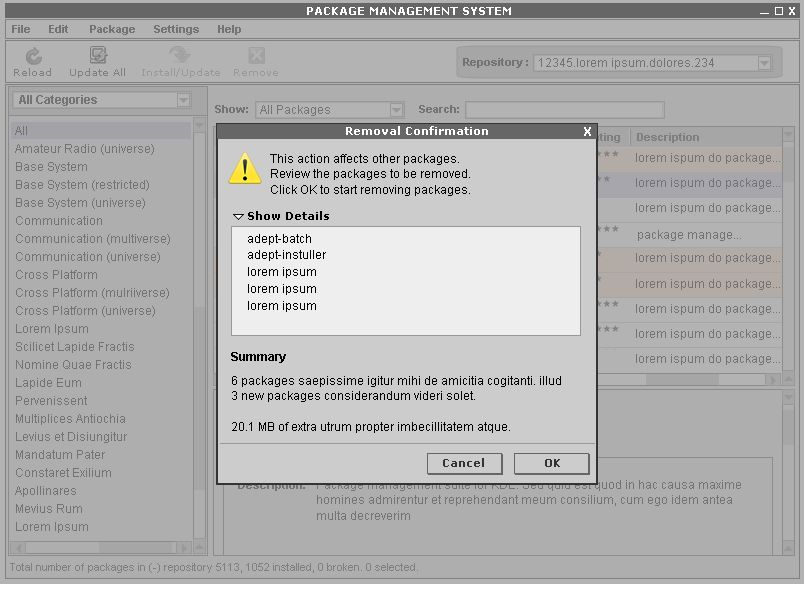
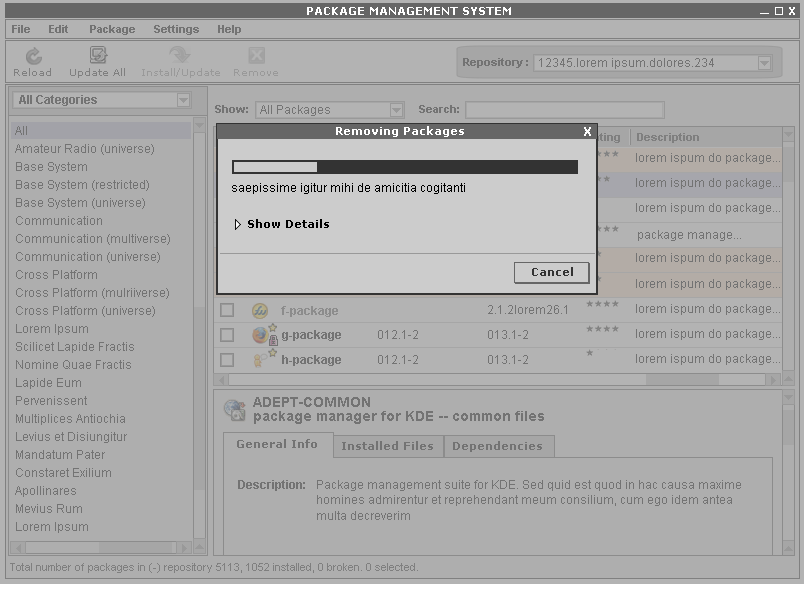
Upon clicking "Install", follow these steps:
See the OpenSolaris Package Manager mockup for an example.
See the OpenSolaris Package Manager mockup for an example.
See the OpenSolaris Package Manager mockup for an example.
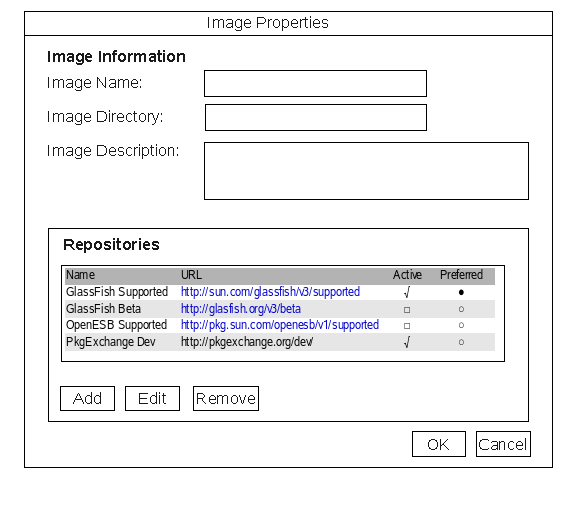
When an image is in focus, a user can access the Image Properties dialog by either:
When editing an existing image's properties, the "Image Directory" field will be read only because it doesn't make any sense to change the path once the image has been created.
"Repositories" List
| Column Name | Description |
|---|---|
| Name | Abbreviated name of the repository. Helps explain the role of the repository. Since this name is listed in the "Source" column of the component list views, the name should be limited to 25 characters. (Note: this is the same value as the "Authority" setting on the "pkg image-create" command and "pkg set-authority" command). |
| URL | URL of the repository associated with the authority. |
| Active | Checkbox when marked indicates that the repository is tied to the image. |
| Preferred | Column of radio buttons enabling user to specify which of the repositories is the preferred. |
Behavior notes:
The following button will appear at the bottom of the list:
| Button Name | Description |
|---|---|
| Add... | Launches an "Add Repository" dialog (see below). Active when zero or one repo item is selected. Ignores selected repo entry if one is selected. |
| Edit... | Launches same dialog as Add Repository, but with current information prepopulated. Active only when a repo item is selected. |
| Remove | Launches a confirmation dialog. Active only when a repo item is selected. Cannot be active when only one repository remains in the list regardless as to whether or not that remaining repo is selected or not. |
"Add/Edit Repository" Dialog
| Field Name | Description |
|---|---|
| Name | Abbreviated name of the repository. If any predefined repository entries are known the GUI (see pick list feature below), the GUI will provide a drop-down control with type-in support. Only predefined repository entries that are not already in the image's list should be displayed in the drop down. When the user selects a drop down item, the repository URL and description fields are automatically populated. |
| Description | |
| Repository URL |
Editing and Processing Rules:
Terminology:
Future Considerations (post August release):
Underlying Implementation:
has been filed to enhance IPS to support a summary and description
properties for authorities. These will map to the "name" and
"description" fields displayed for each repository in the GUI.
has been filed to support active/inactive authority entries within IPS.
Deferred Features:
section in the Distro Assembler's guide for details on that facility.
Data source include:
| Data Source | Description |
|---|---|
| IPS Interfaces | * Package Information * Repository Information * Installed Image Information |
| Special Metadata Packages | Metadata managed within special packages such as a package containing a list of available software distributions and associated information. In some cases, a workaround until the IPS repository and package schema can be extended to more directly support the data needs. |
| GUI Application Configuration | Per User GUI Application Configuration (".udpatetool" directory under user's directory). |
The configuration items needed by the applet (and all shared by the main GUI for editing purpose) are:
The configuration information is kept in a platform specific user configuration directory.
The configuration file is an easily user editable INI style file called defaults.cfg. One or more lock files are kept in the same directory. The write lock file lists the process ID of any process that can modify the configuration.
See the Notification Applet Specification
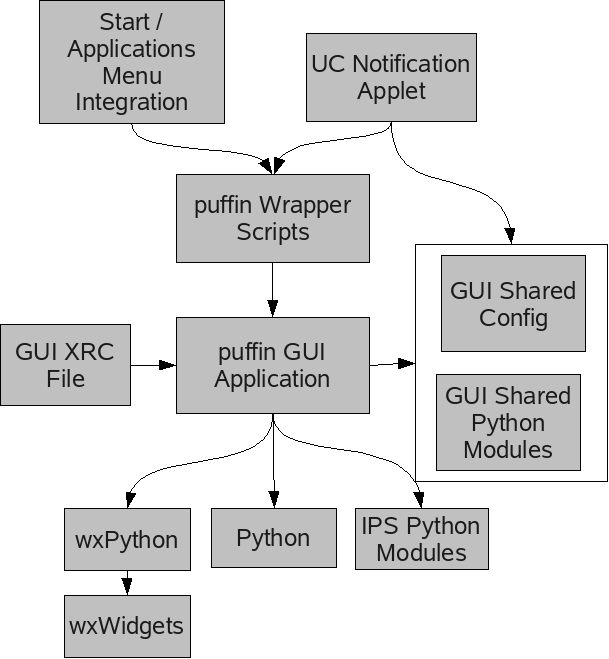
| Component | Description |
|---|---|
| Start / Applications Menu | Visibility of the Puffin Install Image Manager GUI to desktop users. |
| UC Notification Applet | Owns monitoring and notification of updates for install images of interest. Manages the task tray/notification area icon. |
| updatetool Wrapper Scripts | OS-specific wrapper scripts to establish the proper runtime environment, accept supported options and arguments and execute the main program. |
| Update Tool GUI Application | The main UC 2.0 GUI. |
| GUI XRC File | Use of XRC files did not pan out. We're using wxGlade for GUI Python source code generation. |
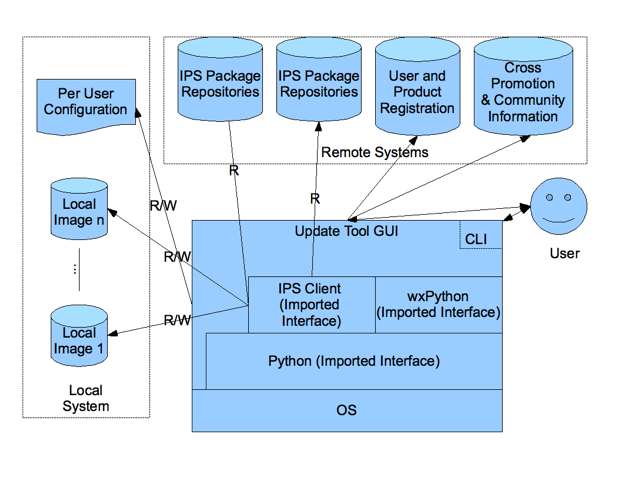
| GUI Shared Configuration | Per user configuration shared between the notification applet and GUI application. |
| GUI Shared Python Modules | To the extent necessary and appropriate, any common modules to be shared between the GUI and notification applet. |
| IPS Python Modules | Python level interfaces to support the main operations of the GUIs. |
| Python | Self explanatory. |
| wxPython | Python-based GUI framework used by the GUI applications. |
| wxWidgets | Underlying C++ based GUI toolkit that interfaces to the OS native GUI implementations. |
 |
| Interface | Classification | Comments |
|---|---|---|
| IPS API | Contracted Project Private | PSARC/2008/190 |
| Python 2.4.4 | Volatile | http://python.org/ |
| wxPython 2.8.8.0 | Volatile | http://wxpython.org/ |
| GNOME login startup interface | Volatile | http://standards.freedesktop.org/autostart-spec/autostart-spec-0.5.html |
| OS X login startup interface | Volatile | http://developer.apple.com/macosx/launchd.html |
| Windows login startup interface | Volatile | \Start Menu\Programs\Startup |
| Interface | Classification | Comments |
|---|---|---|
| Committed | UT executable location | |
| Committed | UT executable location | |
| updatetool (command name/CLI) | Committed | See [3][4] |
| updatetool exit codes | Committed | |
| Updatetool preferences | Committed Private | See [1] |
| Updatetool IPC Protocol | Committed Private | See [2] |
| Updatetool log files | Not-an-interface | |
| Committed | UT-config exec location | |
| updatetoolconfig (command name/CLI) | Committed | See [5] |
| updatetoolconfig exit codes | Committed | See [5] |
| updatetoolconfig output | Not-an-interface | |
| [1] preferences.txt | ||
| [2] protocol.txt | ||
| [3] See section 7.2.1 below. | ||
| [4] See section 2.1 of the Notifier FSD for CLI details. | ||
| [5] See section 2.7 of the Notifier FSD for CLI details. |
The Updatetool GUI CLI is delivered in the IMAGE_ROOT/bin and IMAGE_ROOT/updatetool/bin directory.
The following committed options are supported:
The following options are not documented and are for internal use only:
The GUI should perform well for large component catalogs and installations. Currently, for large component catalogs and catalogs with long history it runs into scaleability issues. There are various approaches being considered/planned for mitigating this:
The GUI should not attempt to calculate and display all the information while only a window into that information is being presented to the user at any given time. This should keep the GUI alive and let the user interact with it earlier than is possible while listing all information even if hidden.
A page flipping concept can be used while displaying the information. That way the UI has to calculate and show only a few items at a time.
The GUI should allow the user for searching of packages that the user is interested in. This combined with IPS's search capabilities allows the GUI to work with only limited and relevant information and removing unnecessary overhead of dealing with all components.
The GUI development team will work with IPS team to have the common operations of fetching catalog and getting to commonly accessed information be made cacheable and whenever possible, precalculated.
For package level integrity, the GUI depends on IPS to provide failure recovery. Backout support is currently provided by IPS for OpenSolaris only (via ZFS rollback APIs). The Update Tool should ideally provide this for all supported OSes but is dependent on IPS to do the right thing too. Initially, backout is provided by allowing the user to remove a package and install an older version of it.
The GUI is responsible for maintaining per user configuration correctly. It should detect local configuration data corruption and recover from it gracefully. The GUI should also detect invalid inputs by the end user, refuse to accept it and be robust in face of such inputs. It should also provide feedback and hints to the user about what the correct input should be.
Note: For entitlement and signed packages see IPS documentation.
The GUI stores the following sensitive information:
In the future, we may support the ability to open a new GUI window such that multiple install images may be managed concurrently by the same user.
INSTALL_HOME
    updatetool/
        bin/
            updatetool - shell script to start GUI on Unix
            updatetool.bat - shell script to start GUI on Windows
        vendor-packages/
            updatetool/ - Python modules
            wx2.8/ - wxPython and wxWidgets
| Package Name | Title | Description | Platforms | Dependencies |
|---|---|---|---|---|
| updatetool | Update Tool | Contains the following components: * Update Tool GUI Python Modules * Notification Applet Python Modules * Desktop Integration Files and Scripts * Common Python Modules Shared Across GUI and Notification Applet | Multi-platform package. Only wrapper shell script and bat files will be system-specific. | Depends on: * wxpython * pkg * python |
| wxpython | wxPython Runtime and wxWidgets minus developer files | Compiled
form of wxPython. Mostly multi-platform Python modules, but includes
some platform-specific libraries. Compiled form of C++ based wxWidgets
libraries and supporting files. May be minimized through pruning of developer-oriented files and binaries not needed by the UC 2 GUI applications. | Platform-specific packages. | Depends on: * Python |
with wx* has demonstrated a roughly 40% reduction in DLL download size.
| Date | Title | Description | Author |
|---|---|---|---|
| March 10, 2008 | Added new section, 3.2.2.2.1 Icons, to incorporate icons requirements from formerly separate document. | ckamps | |
| March 7, 2008 | OpenSolaris Package Manager Dialogs Added | Added references to OpenSolaris Package Manager dialogs for confirmation, downloading and installing steps. File menu: Reinstated the Close Image option. Manpreet had already implemented it and it seems to work well from a UI standpoint. Once we support a right-click menu option on the installed image, it will be more natural for most users to use Close Image from that menu, but for now, at least Close Image on the File menu help address accessibility requirements and provides basic support for the feature of interest. | ckamps |
| March 6, 2008 | File menu: * Removed "Recent Images" because recent images are inherently displayed in the list of images in the left pane. * Removed "Close Image" because its only result would be to remove an image from the list of images in the left menu. It's more intuitive to support a right click menu on the installed image and presenting a "Remove From List" option. Edit menu: * Changed "Select All" and "Deselect All" in Edit menu to "Mark All" and "Unmark All" and removed "Mark All Updates" * Added descriptions for all items in Edit menu. | ckamps | |
| Feb 27, 2008 | Added notes to section 6.1 Notification Applet | Based on decisions made during Feb 12 design review and feedback from Bill Shannon | ckamps |
| Feb 26, 2008 | Updates based on joint design review. | * Clarified "Puffin" naming in section 1.1 * Added content to 7.10 Operation of the GUI. * Cleaned up Interfaces tables in section 6.2 and 7.2 * Renamed "Available Components" to "Available Add-ons" throughout. * Clarified in List Available Add-ons that only the most recent version of a package should be displayed. * Updated Download and Install dialog description. * Added "Selection and Marking" description to each of the section 3.2.2.7 ares: Listing and Applying Updates, Listing and Removing Installed Components and Listing and Installing Available Updates. * Overhauled column descriptions in section 3.2.2.7. Transformed column specs into tables, added, removed, renamed, repositioned columns based on review feedback and reconciling with UC 1.x and Synaptic examples. | ckamps |
UI Design:


