| Updated 02-Sep-2008 12:17:31 PDT by Chris Kasso |
The desktop notification applet (a.k.a notifier) is a mini-application (and not a Java applet) that resides in the system tray or task bar. It monitors registered images and repositories periodically to see if any updates are available for the software installed by the user. When updates are available the applet notifies the user through various means and subsequently allows the user to take action conerning the updates.
The following options are supported:
The following options are not documented and are for internal use only:
The notifier is typically started when the user logs into the system. It is integrated with platform specific log in task management interfaces.
These tasks are stopped by the platform when the user logs off the system.
The registration/unregistration of the start up task is managed by the updatetoolconfig utility (see section 2.7 for details). The notifier may also be registered as part of the UC bootstrapping process or the updatetool GUI may attempt to register the notifier.
Only one instance of the notifier per user is allowed to run. If the user attempts to run additional notifiers the following message is printed before the notifier exits:
Update Tool Notifier: The tool is already running. Use the --new option to start a new instance.
The default update check frequency is daily.
The user can choose between Daily, Weekly, Monthly or Never. The specific time of day or day of week the check is performed is not changeable by the user and is established strictly by when the notifier was started.
If the system is down, hibernating, or the user is logged off when an update check should be performed the update check will be postponed. It will be performed within an hour of the system returning to an active state with the user logged in. The next follow-on check will occur no sooner than the current established check frequency.
If the user changes the update frequency via the preferences the next check will occur no sooner than the newly established check frequency.
When the notifier is started it will delay 60 seconds before attempting to check for any updates (this is to avoid a race condition that can exist with the desktop taskbar initialization). If this is the first time the notifier is ever run it will perform an update check. If this is a subsequent run of the notifier it will check for updates according to the established update frequency - but no sooner than 60 seconds after the notifier is started.
Internal use only:
A timer debug option is available for internal use only. This may be useful for debugging and testing the notifier. If the notifier is run with the --timerdebug option the interval definition of Daily, Weekly and Monthly will be modified to:
Additional debug output will be sent to stderr.
The notifier will monitor all images that are known to the Update Tool GUI. As images are added or removed via the GUI the notifier will adjust to monitor the current list known to the GUI.
The list of images known to the GUI is per user.
There is no public interface in the notifier to modify the list of images to monitor.
If the notifier is monitoring an image that does not exist on the filesystem or the IPS repository associated with that image is not available the notifier will report a warning but generally the warning will not be seen directly by the user because the notifier is typically executing as a log in startup task. It will continue to monitor those images until they are removed via the GUI.
The notifier consists of a icon which can appear in a platform specific dock, tasktray, etc. A menu is associated with the icon. Balloon style notification is utilized to inform the user of available updates.
The icon will only appear in the dock when updates are available for one or more images. If no updates are available the icon will not be displayed in the dock. The appearance of the icon is an indication to the user that one or more images have pending updates.
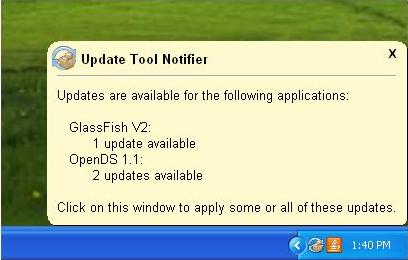
At the end of each update check interval if pending updates exist a balloon shaped notification window will appear on the desktop. The balloon notification is placed close to the notifier icon in the tasktray. On some platforms it may be difficult to determine the location of the icon in the tasktray. In those cases the balloon notification will default to a reasonable location on the desktop, for example the upper left corner or lower right corner.
At the end of the update check interval if no pending updates exist nothing will be displayed on the desktop.
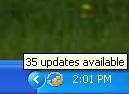
On platforms where it is supported hovering the mouse over the notifier icon in the tasktray will trigger a tooltip message which will indicate the total number of updates available across all monitored images.
If the user applies all or some of the updates via the GUI, the notifier should respond appropriately by updating the tooltip or removing the icon from the tasktray if no updates are pending. This should occur within a reasonable amount of time after the updates are applied.
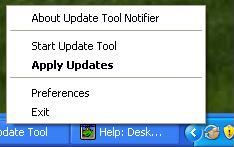
When the notifier icon is displayed a menu is available by right clicking on the icon. The menu contains the following elements:
Selecting the "About Update Tool Notifier" displays an About dialog which is identical to (and shared with) the GUI.
Selecting Start Update Tool will cause an existing Updatetool GUI to come forward if supported by the platform. If the Updatetool GUI is currently not running the notifier will launch the GUI.
Selecting Apply Updates will cause an existing Updatetool GUI to display the available updates. The user will be prompted to apply the updates.
Selecting "Preferences" displays a preferences dialog which is identical to (and shared with) the GUI.
Selecting "Exit" cause the notifier to exit.
In addition to selecting the "Apply Updates" menu item the user may initiate the "Apply Updates" action by click on the notifier icon in the tasktray or by clicking on the balloon notification window.
|
 |
 |
The preferences dialog is shared with the GUI. They are identical and the user can use either to modify the notifier's preferences.
There are two tabs available in the preferences dialog.
The Network tab allows the user to choose Proxy settings. The user can choose between a "Direct connection to the internet" or "Manual proxy configuration". If a manual configuration is chosen additional controls are enabled which allows the user to select the "HTTP Proxy" and "Port", provide a "No proxy for" list of hosts as well as provide a user name and password for proxy authentication.
The Updates tab allows the user to choose the frequency to check for updates. Choices are Never, Daily, Weekly or Monthly.
All choices are stored as properties in $HOME/.updatetool/defaults.cfg (UNIX)
or
The notifier may be registered as a desktop login start up task. Each desktop that is supported provides unique facilities to enable this functionality. In order to facilitate this integration a utility is provided to register and unregister the notifier as a startup task.
The Update Tool Configuration Utility - updatetoolconfig is delivered in the IMAGE_ROOT/updatetool/bin directory.
The following options are supported:
If the notifier has already been registered for this user --register returns an error unless the --force option is also provided.
The --type option is optional. If it is not provided the utility will determine the desktop type. For GNOME based desktops the old style of login startup tasks will be used if /usr/bin/gnome-session-properties --version returns 2.12 or earlier. The register and unregister operations do not generate any output if the operation was successful.
Exit codes:
Only one notifier needs to be registered as a start up task. One notifier will monitor all images known to the GUI. While it is easy to prevent more than one notifier to be registered it is unclear how we should handle the case when that notifier is removed because its image has been uninstalled. Other images owned by that user may remain on the system.
How do we make sure the notifier remains active until the last image it is monitoring is removed from the host?
Update: This issue has been resolved. See Notifier life cycle overview..
The notifier records the wall clock time of the last check. At regular intervals (hourly) it determines if the next check should occur based on the current wall clock time and when it believes the next check should occur relative to the prior, recorded check time. As soon as it detects the wall clock time is later than the next check time the update check occurs. This computation will occur when ever the notifier is launched and then on hourly intervals after that point.
| balloon.JPG |  |
20611 bytes |
| menu.JPG |  |
8587 bytes |
| tooltip.JPG |  |
3525 bytes |


